Excellon Drilling
Drill Setup converts imported plated through-hole (PTH) and non-plated through-hole (NPTH) data into CNC drilling operations grouped by hole diameter and assigned drill tool.
1. Check the imported drill data
- Select View Excellon on the main toolbar.
- Check that the expected holes are visible and positioned correctly.
- Compare the hole locations and board scale with the source PCB or Gerber viewer.
- Make sure the required physical drills are available in the Tool Library.
2. Open Drill Setup
Select DrillSetup on the main toolbar, or open Manufacturing > Drill Setup. TraceFab combines the imported PTH and NPTH data and creates one row for each exact nominal hole diameter.
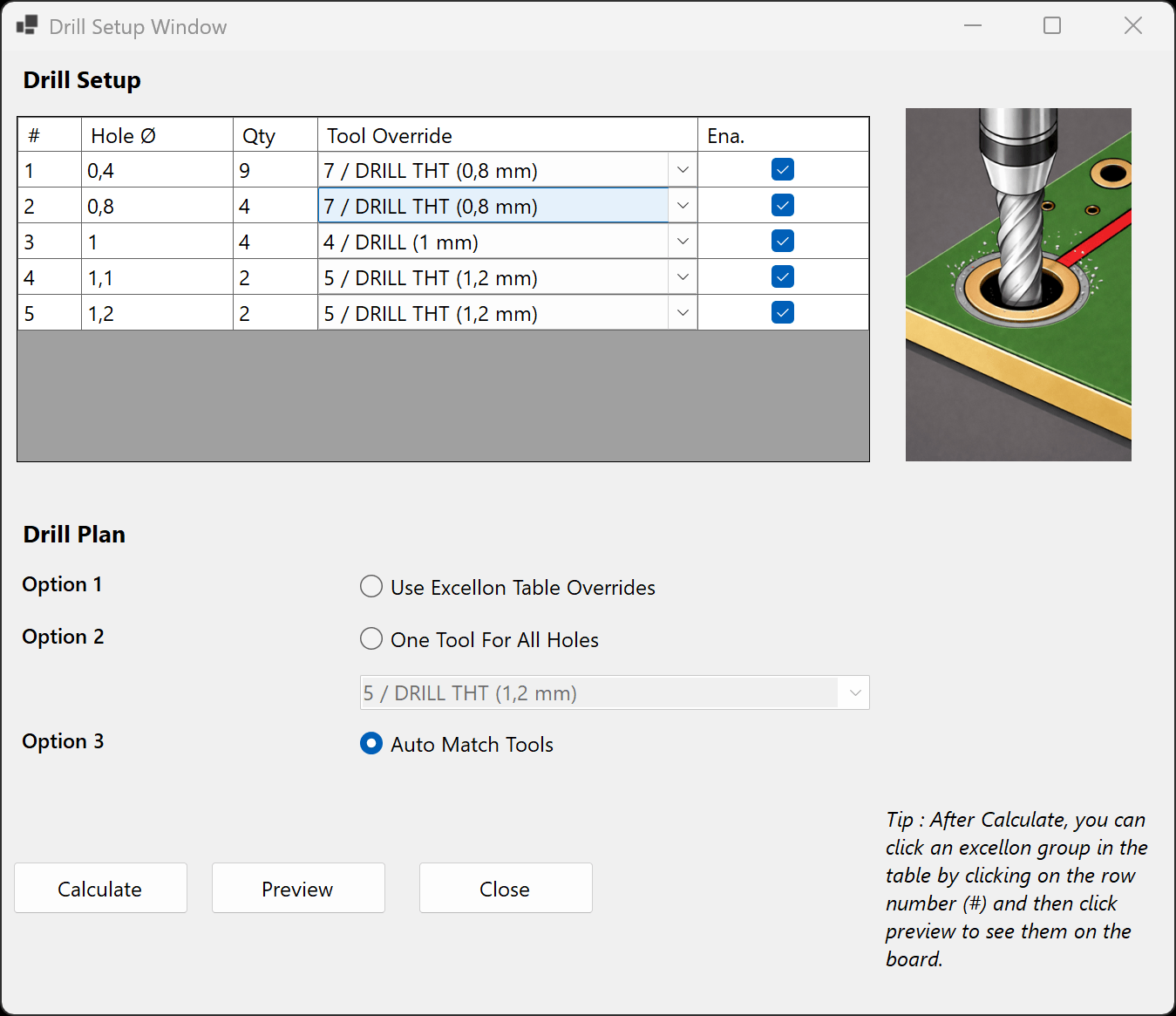
Drill table
- #: selects and identifies a complete hole-diameter group.
- Hole diameter: nominal diameter found in the imported PCB data.
- Qty: number of holes in that diameter group.
- Tool Override: selected or suggested physical drill tool.
- Ena.: includes or excludes the entire diameter group.
3. Choose a drill-plan mode
Auto Match Tools
This is the default mode. TraceFab first looks for a drill that matches the nominal diameter within 0.02 mm. If no match exists, it selects the smallest larger drill, or finally the closest available drill.
Use Excellon Table Overrides
Select the required drill manually in the Tool Override column for every enabled row. Use this when specific hole groups need a different tool or when you want direct control over tool changes.
One Tool For All Holes
Assigns one physical drill to every enabled hole group. This avoids tool changes, but all included holes are drilled at that one diameter.
4. Preview a hole group
- Select the required group using its row number in the # column.
- Select Preview.
- Compare the highlighted holes and their quantity with the selected table row.
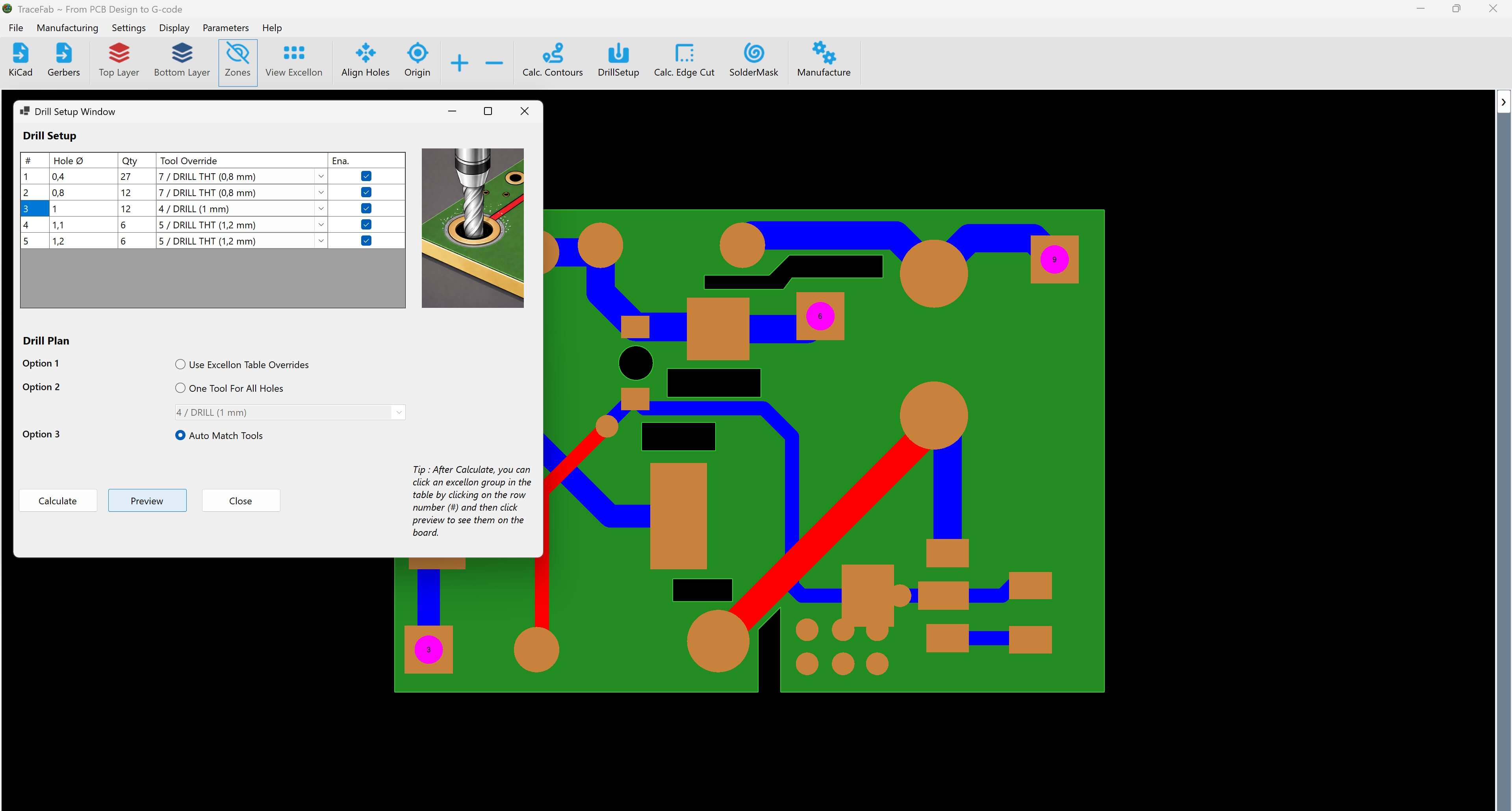
5. Calculate and review the drill plan
Pre-calculation checklist
- The listed hole diameters and quantities agree with the imported PCB data.
- Every required PTH and NPTH group is enabled.
- Every enabled group has the intended physical drill assigned.
- No selected drill is too large for surrounding copper or mechanical clearances.
- Every intentionally disabled group can safely be omitted from the PCB.
- Select Calculate.
- TraceFab validates the enabled rows and their tool assignments.
- Hole groups assigned to the same Tool ID are combined into one drilling operation.
- Review the resulting drill operations later in the Manufacturing window.
To change a tool assignment or enabled group, update the Drill Setup table and select Calculate again. The new drill plan replaces the previous calculated operations.